Copy Product & Templates
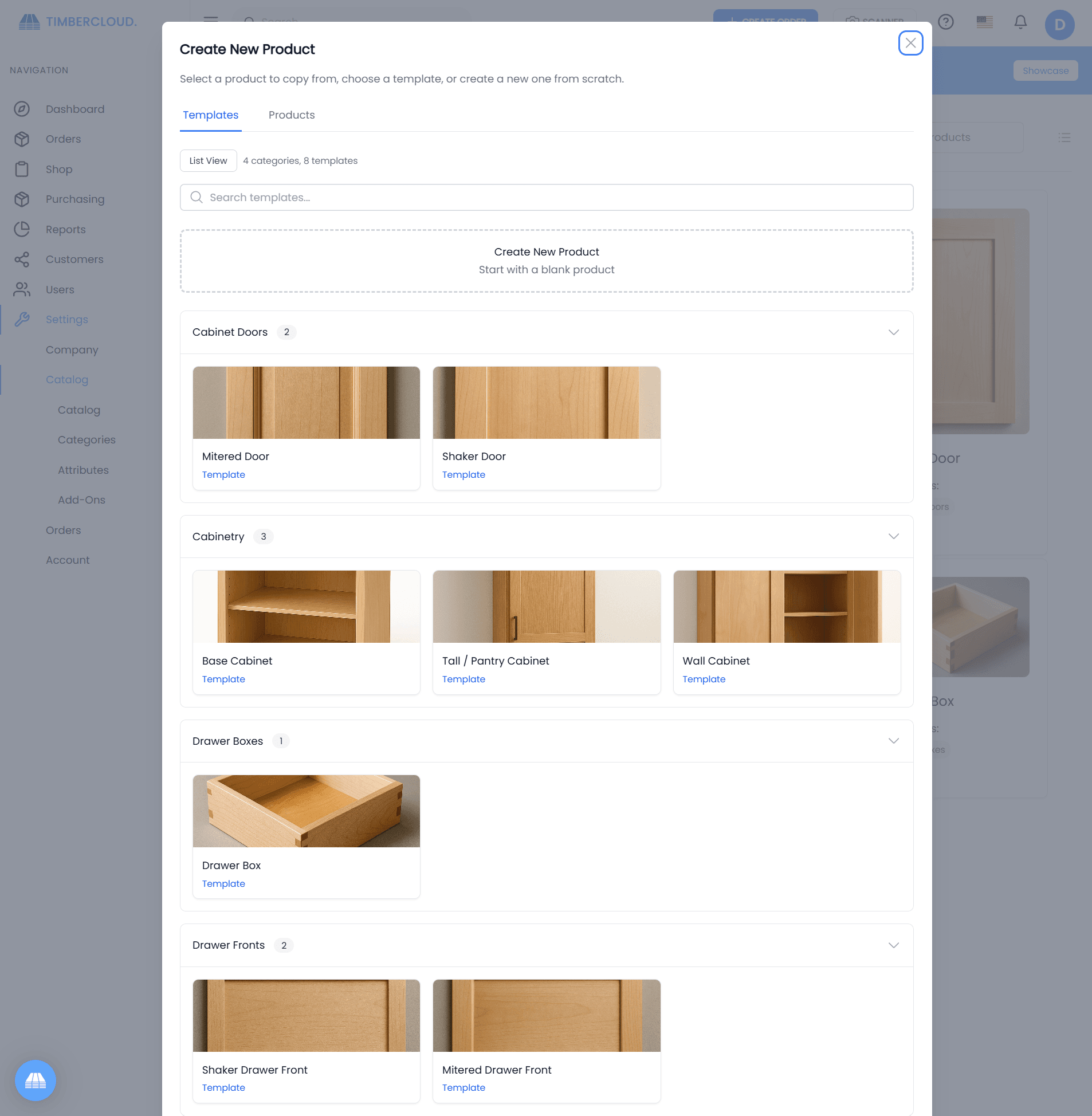
Speed up product creation by copying existing products or using pre-built templates. Both methods preserve complex configurations like attributes, line items, pricing formulas, and parts.
Overview
When creating a new product, you have three options:
| Method | Best For |
|---|---|
| Create New | Unique products with no similar existing products |
| Templates | Starting with pre-configured product types |
| Copy Existing | Variations of your own products |
Using Templates
Templates are pre-built product configurations that give you a head start on common product types.
What Templates Include
| Component | Included |
|---|---|
| Line item structure | ✓ |
| Attribute tables | ✓ |
| Pricing formulas | ✓ |
| Parts configuration | ✓ |
| Build sheet layout | ✓ |
| CSV exports | ✓ |
Selecting a Template
- Click "Add New Product" on the Catalog page
- Choose the Templates tab
- Browse templates by category or search
- Click a template to create a product from it
Template Views
Templates can be browsed in two views:
| View | Description |
|---|---|
| Category View | Grouped by product category (expandable) |
| List View | Flat list with search and pagination |
Toggle between views using the button in the modal header.
After Selecting a Template
Once you select a template:
- A new product is created based on the template
- You're redirected to the product editor
- Customize the product for your needs:
- Update the name
- Modify attribute values
- Adjust pricing formulas
- Configure for your materials
Templates provide the structure—you customize the specifics.
Copying Existing Products
Copy your own products to create variations without starting from scratch.
When to Copy
- Creating similar products with minor differences
- Making product variations (different sizes, styles)
- Testing changes without modifying the original
How to Copy
- Click "Add New Product"
- Choose the Copy Existing tab
- Search or browse your products
- Click a product to copy it
What's Copied
| Component | Copied |
|---|---|
| Product name | ✓ (with "Copy" appended) |
| Categories | ✓ |
| Description | ✓ |
| Line items | ✓ |
| Attributes | ✓ |
| Pricing formulas | ✓ |
| Parts | ✓ |
| CSV exports | ✓ |
| Settings | ✓ |
What's NOT Copied
| Component | Notes |
|---|---|
| Order history | Starts fresh |
| Media/Images | Re-upload for new product |
| Inventory data | Starts with no inventory |
Templates vs. Copy
| Feature | Templates | Copy Existing |
|---|---|---|
| Source | Global library | Your products |
| Categories | Pre-organized | Your categories |
| Customization | Significant customization expected | Minor tweaks |
| Use Case | New product types | Product variations |
| Examples | Cabinet doors, drawer boxes | Different wood species, sizes |
When to Use Templates
- Starting a product type you've never made before
- Looking for best-practice configurations
- Learning how to structure complex products
When to Use Copy
- Creating variations of existing products
- Seasonal or limited-edition versions
- Testing pricing changes
Managing Copied Products
After copying, the new product is independent:
- Changes to the original don't affect the copy
- Changes to the copy don't affect the original
- Each product has its own order history
Best Practices
- Rename immediately - Change the name to avoid confusion
- Update description - Reflect what makes this version different
- Review all settings - Verify categories, visibility, and pricing
- Test with a sample order - Ensure calculations are correct
Search and Filter
Both the Templates and Copy Existing tabs support search:
Search Behavior
- Searches product/template names
- Searches category names
- Real-time filtering as you type
Pagination
When there are many items, results are paginated:
- 8 items per page
- Navigation at bottom of modal
- Maintains search filter across pages
Creating Templates (Admin)
If you want to create templates for your organization:
Note: Template management is typically done by administrators.
Templates are products marked as template products that appear in the global template library.
Troubleshooting
Template Not Appearing
- Check that the template is published
- Verify your account has access
- Try refreshing the page
Copy Failed
- Ensure you have "Create Product" permission
- Check for network connectivity
- Try again or contact support
Missing Data After Copy
- Some data requires manual setup (images)
- Inventory doesn't copy—intentional
- Check all tabs on the new product
Next Steps
After copying or using a template:
- Update product info - Customize name and settings
- Configure attributes - Adjust material options
- Set up pricing - Modify pricing formulas
- Define parts - Configure for your production
- Test with an order - Verify everything works