Export Builders
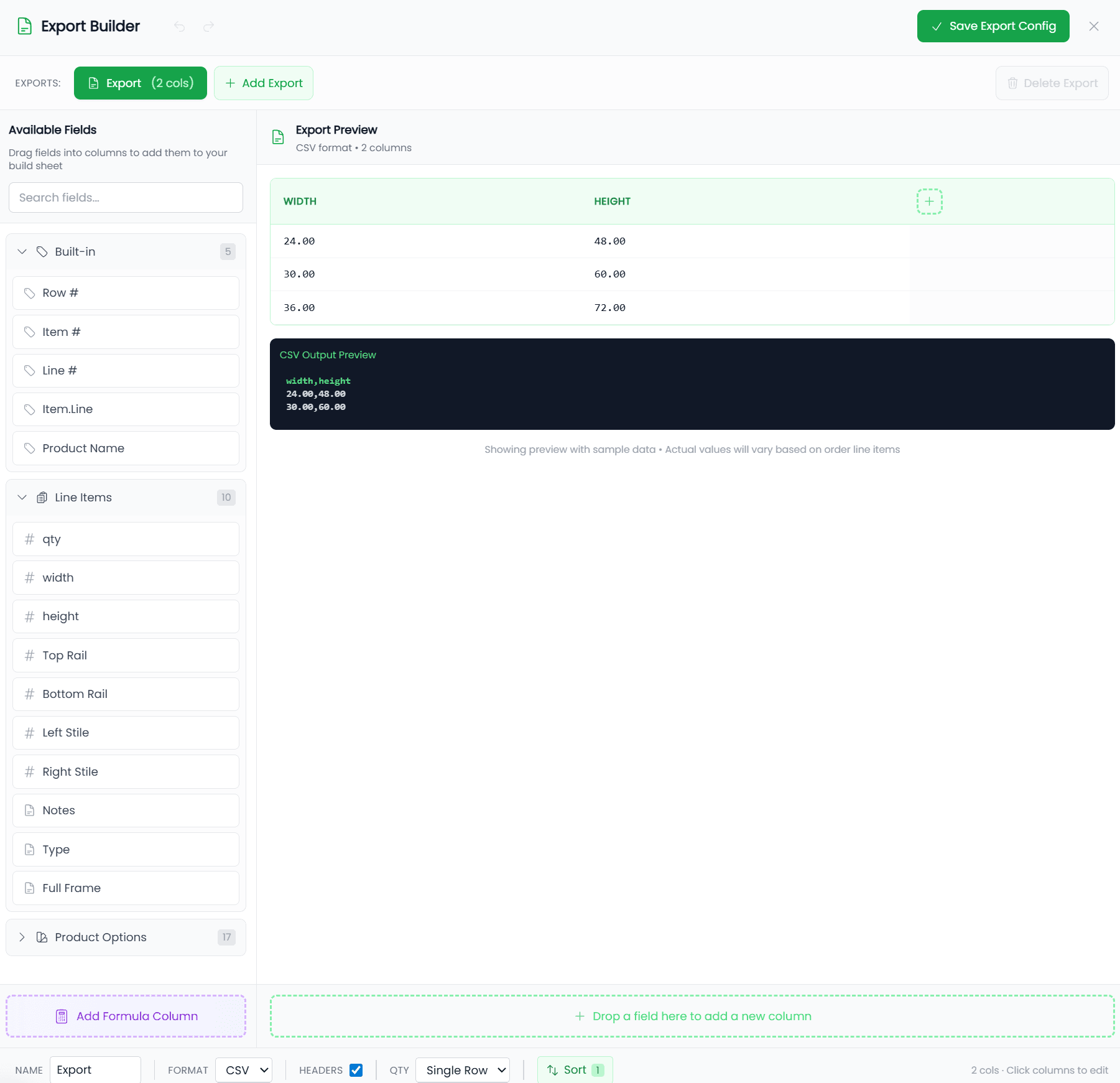
TimberCloud provides two visual builders for creating export configurations: the CSV Export Builder for spreadsheet and CNC exports, and the ORD Export Builder for Cabinet Vision integration. Both live on a product's Production tab, next to Build Sheets and Labels.
Both builders use a drag-and-drop interface—no coding required.
Availability: Exports are an advanced product feature and require the Build plan and up. You'll find CSV and ORD exports on a product's Production tab. On Free and Commerce, the Production tab shows an upgrade preview instead. (Neutral CNC/CAM DXF export — covered at the end of this page — is a separate, order-level capability.)
CSV Export Builder
The CSV Export Builder creates table-based exports where you define columns using a visual interface.
Interface Overview
The builder has a three-panel layout:
| Panel | Location | Purpose |
|---|---|---|
| Available Fields | Left | Draggable fields from your product |
| Export Preview | Center | Live preview with sample data |
| Column Editor | Right | Configure selected column settings |
Opening the Builder
- Open your product from the Catalog
- Go to the Production tab → CSV Exports
- Click Create CSV Export (or edit an existing one)
Creating Columns
Drag and Drop
- Find a field in the Available Fields panel
- Drag it into the Export Preview area
- The field becomes a new column
- Click the column to configure it in the right panel
Add Button
- Click "+ Add Column" below the preview
- A new empty column appears
- Configure its content in the Column Editor
Available Field Sources
| Source | Icon | Description | Examples |
|---|---|---|---|
| Built-in | 🏷️ | Standard export fields | Row #, Item #, Line #, Product Name |
| Line Items | # | Your product's line item fields | width, height, depth, qty, notes |
| Product Options | 📦 | Selected attribute values | Material.name, Edge.thickness |
| Parts | ⚙️ | Part dimensions from Parts & Components | Part 1 Width, Part 2 Length |
Column Editor Settings
When you select a column, the right panel shows configuration options:
Header Name
The column header text that appears in the CSV:
Width,Height,Material  ← These are header names
24.5,34.5,Cherry
Content Type
How the column value is determined:
| Type | Description | Example |
|---|---|---|
| Field | Direct field value | width → 24.5 |
| Formula | Calculated value | width * height / 144 → 5.83 |
| Template | Text with placeholders | {{width}} x {{height}} → "24.5 x 34.5" |
| Static | Fixed text for all rows | "Cabinet" |
Number Format
For numeric fields, choose display format:
| Format | Input | Output |
|---|---|---|
| Decimal | 24.5 | 24.50 |
| Fraction | 24.5 | 24 1/2 |
| Integer | 24.5 | 25 |
| Text | 24.5 | 24.5 (as string) |
Decimals
For decimal format, specify precision (0-6 decimal places).
Prefix / Suffix
Add text before or after values:
| Setting | Value | Output |
|---|---|---|
Suffix: " | 24.5 | 24.5" |
Prefix: $ | 100 | $100 |
Suffix: lbs | 45 | 45 lbs |
Export Settings
At the bottom of the builder:
| Setting | Description |
|---|---|
| Name | Export name shown in Orders (e.g., "Build Sheet", "CNC Export") |
| Format | File format (CSV) |
| Include Headers | Toggle to include/exclude column headers in first row |
| Qty Format | How to handle quantities |
Quantity Format Options
| Option | Behavior | Example |
|---|---|---|
| Single Row (qty column) | One row per line item | 24.5, 34.5, 3 (qty=3) |
| Separate Rows | Expands into multiple rows | 3 rows with 24.5, 34.5, 1 each |
Column Actions
| Action | How | Description |
|---|---|---|
| Select | Click column | Opens editor panel |
| Reorder | Drag column header | Changes column position |
| Delete | Click trash icon | Removes column |
| Duplicate | Click duplicate icon | Copies column with settings |
Formula Columns
Click "+ Add Formula Column" to create calculated values:
- Opens the Formula Builder modal
- Build your calculation step by step
- Use field values, numbers, and operators
- Save to create the formula column
Example formulas:
- Square feet:
width * height / 144 - Perimeter:
(width + height) * 2 - Price per sqft:
price / (width * height / 144)
Saving Your Export
- Click the green "Save Export Config" button
- Configuration saves to the product
- Toast notification confirms save
- Close the builder
Sorting & Grouping
Control row ordering in your CSV export with sorting rules.
Opening Sort Configuration
- Click the Sort button in the export settings footer
- The Sort & Group modal opens
- Enable sorting with the toggle
- Add sort rules
Sort Rule Settings
| Setting | Description |
|---|---|
| Field | The data field to sort by |
| Order | Ascending (A→Z, 1→9) or Descending (Z→A, 9→1) |
| Group | Enable visual grouping (first rule only) |
Available Sort Fields
| Category | Fields | Examples |
|---|---|---|
| Built-in | Row #, Item #, Line # | Sort by original order |
| Line Items | Your product's fields | Width, Height, Depth, Qty |
| Product Options | Attribute values | Material.name, Edge.thickness |
| Parts | Part dimensions | Part 1 Width, Part 2 Length |
Multi-Level Sorting
Add multiple sort rules for complex ordering:
- Primary sort - First field to sort by (with optional grouping)
- Secondary sort - Sort within the first
- Tertiary sort - Further refinement
Example for CNC Export:
- Sort by
Material.name(group all Cherry together, then all Maple) - Sort by
Widthdescending (widest first for nesting optimization) - Sort by
Heightdescending
Grouping
Enable Group on the first sort rule to:
- Add blank rows between groups in the export
- Organize output by material, product type, or other criteria
- Improve readability for shop floor exports
Common Grouping Scenarios:
- Group by material for efficient sheet usage
- Group by thickness for saw setup optimization
- Group by cabinet type for assembly workflow
ORD Export Builder
The ORD Export Builder creates Cabinet Vision-compatible files with the proper section structure.
ORD File Structure
Cabinet Vision ORD files have three sections:
[Header]
Version=4
Unit=0
Name=Order-12345
Customer=John Smith

[Catalog]
BaseDoorStyle="Shaker"
Option="Cherry"

[Cabinets]
24,30,12,"Base Cabinet"
30,36,24,"Wall Cabinet"
The ORD Builder lets you configure each section separately.
Opening the Builder
- Open your product from the Catalog
- Go to the Production tab → ORD Export
- Click Create ORD Export (or edit an existing one)
Interface Overview
| Panel | Location | Purpose |
|---|---|---|
| Section Configuration | Left | Configure Header, Catalog, and Cabinets sections |
| ORD Preview | Right | Live preview of the ORD file structure |
Configuring [Header] Section
The Header section contains order metadata. Click to expand and add fields:
| Field | Description | Common Value |
|---|---|---|
| Name | Order identifier | {{_order_number}} |
| Description | Order description | "Kitchen cabinets" |
| Customer | Customer name | {{customer.name}} |
| Contact | Contact person | {{customer.email}} |
| Phone | Phone number | {{customer.phone}} |
| Address | Shipping address | Static or dynamic |
| Notes | Order notes | {{notes}} |
Adding Header Fields
- Click the [Header] Section to expand
- Click a field button (e.g., "+ Name", "+ Customer")
- Configure the field value
- Use
{{field}}syntax for dynamic values
Configuring [Catalog] Section
The Catalog section defines material and style options:
| Field | Description | Example |
|---|---|---|
| Name | Catalog name | "Custom Cabinets" |
| BaseDoorStyle | Base cabinet door style | {{DoorStyle.name}} |
| WallDoorStyle | Wall cabinet door style | {{DoorStyle.name}} |
| DrawerFront | Drawer front style | {{DrawerFront.name}} |
| Option | Material option | {{WoodType.name}} |
| Finish | Finish option | {{Finish.name}} |
| Construction | Construction type | "Frameless" |
Adding Catalog Fields
- Click the [Catalog] Section to expand
- Click a field button (e.g., "+ BaseDoorStyle")
- Map to your product's attribute values
Configuring [Cabinets] Section
The Cabinets section contains line item data. Each line item becomes a row:
| Column | Description | Content Type |
|---|---|---|
| Width | Cabinet width | Field: width |
| Height | Cabinet height | Field: height |
| Depth | Cabinet depth | Field: depth |
| CabinetType | Cabinet type | Field: _product_name |
| Notes | Special instructions | Field: notes |
Adding Cabinet Columns
- Click the [Cabinets] Section to expand
- Click "+ Add Column"
- Configure the column:
- Name: Column identifier
- Content: Field, static value, or template
- Format: Number or text formatting
Dynamic Values with Templates
Use {{field}} syntax to insert dynamic values:
| Template | Result |
|---|---|
{{_order_number}} | ORD-12345 |
{{customer.name}} | John Smith |
{{DoorStyle.name}} | Shaker |
{{width}} x {{height}} | 24 x 30 |
Field Selector
Click "Insert Field" to browse available fields:
| Category | Fields |
|---|---|
| Built-in | Row #, Item #, Order Number, Product Name |
| Order | Customer Name, Email, Phone, Address |
| Line Items | All your product's line item fields |
| Product Options | All attribute values |
ORD Preview
The right panel shows a live preview of your ORD file:
- Updates in real-time as you configure
- Shows actual field values with sample data
- Color-coded sections for easy reading
- Copy preview content for testing
Saving Your ORD Export
- Click the purple "Save ORD Config" button
- Configuration saves to the product
- Toast notification confirms save
- Close the builder
Undo / Redo
Both builders support undo and redo:
| Action | Shortcut | Button |
|---|---|---|
| Undo | Ctrl+Z | ↶ button in header |
| Redo | Ctrl+Y | ↷ button in header |
Changes are tracked in history, so you can step back through modifications.
Tips and Best Practices
CSV Export Tips
- Match your CNC format: Configure columns in the exact order your machine expects
- Use consistent units: Stick with decimals or fractions throughout
- Include identifiers: Add order number or item index for traceability
- Preview first: Always check the preview before saving
ORD Export Tips
- Map required fields: Cabinet Vision needs Width, Height, Depth at minimum
- Use correct keys: ORD field names must match Cabinet Vision's expectations
- Test imports: Import a sample file into Cabinet Vision to verify
- Check formatting: Numbers should be numbers, strings should be quoted
General Tips
- Name exports clearly: "Panel Saw Export" is better than "Export 1"
- One purpose per export: Create separate exports for different machines
- Test with real orders: Verify exports work with actual production data
- Keep it simple: Only include fields you actually need
Keyboard Shortcuts
| Shortcut | Action |
|---|---|
Ctrl+Z | Undo |
Ctrl+Y | Redo |
Ctrl+S | Save (when focused on builder) |
Escape | Close builder (prompts if unsaved) |
CAM / DXF export (nested CNC output)
Separate from the CSV and ORD builders above, TimberCloud can generate a nested CAM/DXF file from an order's parts — the layout your CNC or nesting software cuts from a sheet. Unlike CSV/ORD, this isn't configured per product on the Production tab; it's produced from order/design data.
DXF by default, G-code opt-in
| Output | Description |
|---|---|
| Neutral DXF (default) | A standard, machine-agnostic DXF with parts nested and organized onto named layers. Works with virtually any CAM/nesting package. This is what you get out of the box. |
| G-code (Beta, opt-in) | Ready-to-run G-code for Grbl controllers. It is off by default and must be turned on in Settings → CNC/CAM. Treat it as Beta and verify output on your machine before cutting production parts. |
Note: Because G-code is machine-specific, TimberCloud produces neutral DXF unless you deliberately enable the G-code path. If you haven't touched the CNC/CAM settings, every CAM export is DXF.
The organization of parts onto layers (cut lines, labels, drilling, etc.) is covered in CAM / DXF Layers. The G-code toggle and its options live in your CNC / CAM settings.
Related Documentation
- Product Exports — Configure exports on products
- Exporting Order Data — Download exports from orders
- CAM / DXF Layers — How nested DXF parts are organized
- CNC / CAM Settings — Enable the Beta G-code (Grbl) path
- Build Sheet Builder — Visual production documents
- Formula Builder — Create calculations