Build Sheet Builder
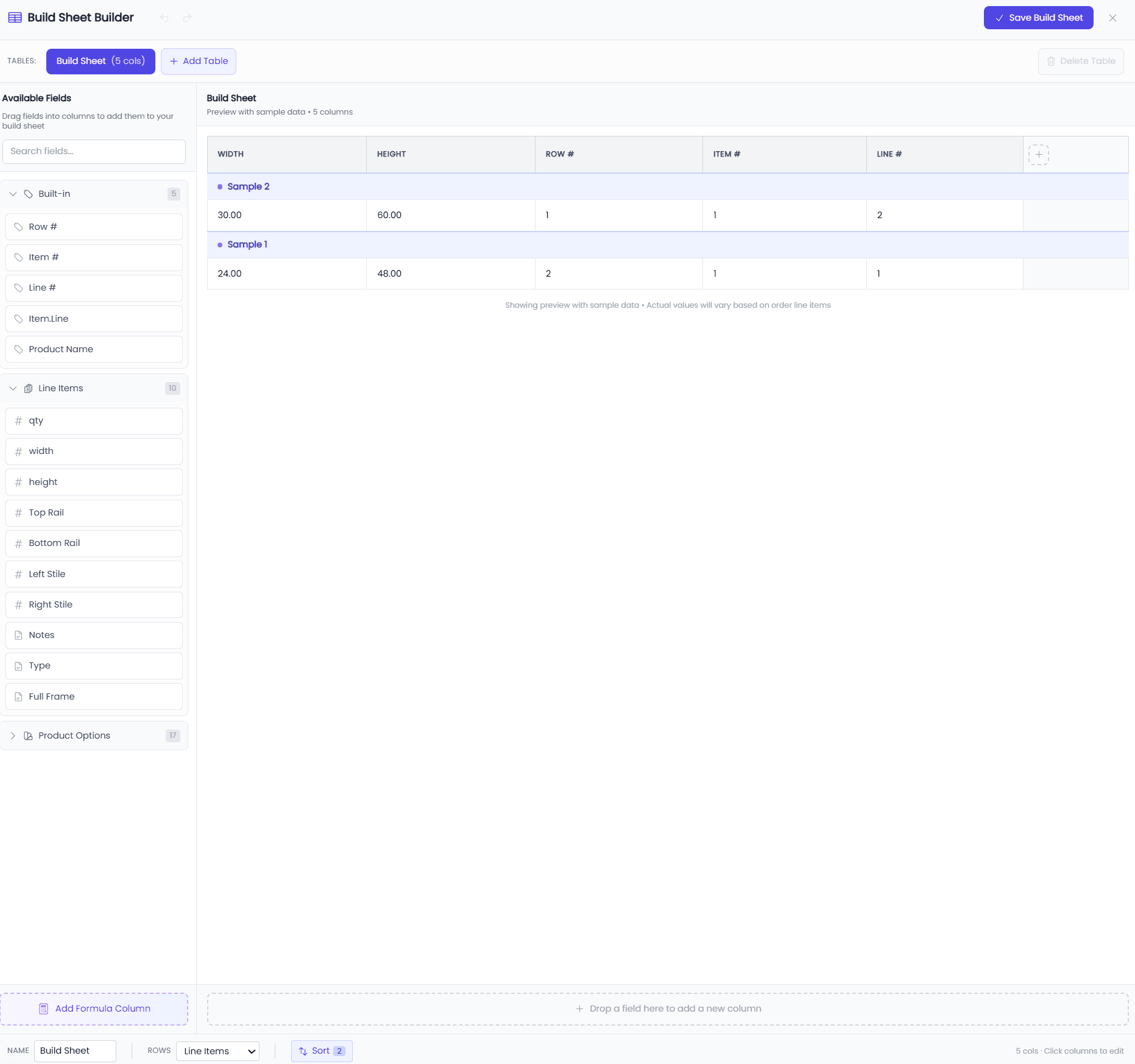
The Build Sheet Builder is a visual WYSIWYG editor for creating production sheets, build sheets, and manufacturing documents. Design custom table layouts by dragging fields into columns and configuring formatting—no code required.
Availability: Build Sheets are an advanced product feature and require the Build plan and up. You'll find them on a product's Production tab. On Free and Commerce, the Production tab shows an upgrade preview instead.
Overview
The Build Sheet Builder replaces complex code-based Parts/Breakdowns configurations with an intuitive drag-and-drop interface. It lives on the product's Production tab, alongside the Export Builders and the Labels designer.
Key Features
- Drag-and-drop column creation
- Live preview with sample data
- Multiple tables per product (each becomes a page in PDF)
- Formula support for calculated columns
- Undo/redo history
- Row source selection (Line Items, Parts, Visual Parts, or Panels)
Getting Started
Opening the Builder
- Open your product from the Catalog
- Go to the Production tab → Build Sheets
- Click Create Build Sheet (or edit an existing one)
- The visual editor opens in a modal
Interface Overview
The builder has three main areas:
| Area | Purpose |
|---|---|
| Field Palette (Left) | Available data sources to drag |
| Table Preview (Center) | Live preview of your table |
| Column Editor (Right) | Configure selected column |
Building Your First Table
Step 1: Drag Fields into Columns
From the Field Palette, drag fields into the table:
- Line Item Fields: Width, Height, Qty, Depth, etc.
- Product Options: Material → Name, Edge → Price, etc.
- Formula: Create calculated columns
Step 2: Arrange Columns
- Drag columns to reorder
- Click a column header to select and edit
- Use move buttons to shift left/right
Step 3: Configure Column Settings
For each column, configure:
- Name: Column header text
- Width: Auto (*) or fixed (e.g., 100px)
- Content: Field reference or formula
- Format: Decimal, text, currency, etc.
Step 4: Preview and Save
- Preview updates in real-time with sample data
- Click "Save Build Sheet" when complete
Field Palette
Line Item Fields
Access values from the order's line items:
| Field | Description |
|---|---|
qty | Quantity ordered |
width | Item width |
height | Item height |
depth | Item depth/thickness |
weight | Item weight |
price | Line item price |
| Custom fields | Your defined line item fields |
Product Options
Access selected attribute values:
| Format | Example |
|---|---|
attribute.name | Selected option name |
attribute.price | Option price value |
attribute.custom_field | Any attribute part value |
Example:
material.name→ "Cherry"material.price→ 25.00edge.profile→ "Ogee"
Formulas
Create calculated columns with formulas:
- Use the visual formula builder
- Combine fields with math operations
- Add conditionals for complex logic
Column Editor
When you select a column, the editor panel appears:
Name
The column header displayed in the table.
Width
- Auto (*): Column sizes to fit content
- Fixed: Specify width in pixels or percentage
Content Type
| Type | Description |
|---|---|
| Field | Reference a line item or option field |
| Formula | Calculated from other values |
| Static | Fixed text or number |
Format Options
| Format | Description | Example |
|---|---|---|
| Text | Plain text | "Cherry" |
| Decimal | Number with decimals | 24.50 |
| Integer | Whole number | 25 |
| Currency | Money format | $24.50 |
| Fraction | Fractional display | 24 1/2 |
| Percentage | Percent format | 15% |
Format Settings
- Decimals: Number of decimal places
- Prefix: Text before value (e.g., "$")
- Suffix: Text after value (e.g., "in")
Multiple Tables
Create multiple tables for complex build sheets:
Adding Tables
- Click "Add Table" in the tab bar
- New table appears with default settings
- Each table becomes a separate page in PDF output
Use Cases
- Table 1: Build sheet for panels
- Table 2: Hardware list
- Table 3: Assembly instructions
Table Settings
For each table, configure:
- Table Name: Displayed as header
- Row Source: Line Items, Parts, Visual Parts, or Panels (see Row Sources below)
Row Sources
Choose what generates rows in your tables:
Line Items
One row per line item in the order:
| Qty | Width | Height | Material |
|-----|-------|--------|----------|
| 2   | 24    | 36     | Cherry   |
| 5   | 18    | 24     | Maple    |
| 1   | 30    | 42     | Walnut   |
Best for: Order summaries, shipping manifests, customer invoices.
Parts
One row per product part (expanded by quantity):
| # | Part   | Width | Height | Material |
|---|--------|-------|--------|----------|
| 1 | Stile  | 2.25  | 36     | Cherry   |
| 2 | Stile  | 2.25  | 36     | Cherry   |
| 3 | Rail   | 2.25  | 19.5   | Cherry   |
| ...                                     |
Best for: Build sheets, shop floor production documents.
Visual Parts
One row per part from the Visual Part Builder:
| # | Part      | Width | Length | Thickness |
|---|-----------|-------|--------|-----------|
| 1 | Left Stile | 2.25 | 36     | 0.75      |
| 2 | Right Stile| 2.25 | 36     | 0.75      |
| 3 | Top Rail   | 2.25 | 25.5   | 0.75      |
| 4 | Bottom Rail| 2.25 | 25.5   | 0.75      |
| 5 | Panel      | 25   | 31.5   | 0.25      |
Best for: Products using Visual Part Builder (doors, cabinets, drawers).
Panels
One row per panel/opening from the Visual Part Builder:
| # | Panel  | Width | Height | Style |
|---|--------|-------|--------|-------|
| 1 | Panel 1| 25    | 31.5   | Raised|
Best for: Panel-focused cut lists, glass cutting schedules.
Sorting & Grouping
Control the order and visual organization of rows in your build sheet.
Opening Sort Configuration
- Click the Sort button in the footer bar
- The Sort & Group modal opens
- Enable sorting with the toggle
- Add sort rules
Creating Sort Rules
| Setting | Description |
|---|---|
| Field | The data field to sort by |
| Order | Ascending (A→Z, 1→9) or Descending (Z→A, 9→1) |
| Group | Enable visual grouping (first rule only) |
Available Sort Fields
Sort rules can reference multiple data sources:
| Category | Fields | Examples |
|---|---|---|
| Built-in | Row #, Item #, Line # | Sort by original order |
| Line Items | Your product's fields | Width, Height, Depth, Qty |
| Product Options | Attribute values | Material.name, Edge.thickness |
| Parts | Part dimensions | Part 1 Width, Part 2 Length |
Multi-Level Sorting
Add multiple sort rules for complex ordering. Rules apply in priority order:
- First rule - Primary sort (with optional grouping)
- Second rule - Sort within the first
- Third rule - Further refinement
Example:
- Group by
Door Type(Door/Drawer Front) - Then sort by
Widthdescending - Then sort by
Heightascending
Result: All doors grouped together, sorted largest to smallest by width.
Grouping Rows
Enable Group on the first sort rule to add visual separation between groups:
| Without Grouping | With Grouping |
|---|---|
| Rows flow continuously | Blank row or visual separator between groups |
| Good for cut lists | Good for organized production sheets |
Common Grouping Scenarios:
- Group by material type
- Group by door style
- Group by room/location
- Group by production priority
Sort Rule Order
Reorder rules using the up/down buttons:
- ↑ Move rule higher priority
- ↓ Move rule lower priority
The topmost rule applies first, then subsequent rules sort within those results.
Example: Cabinet Door Production
Optimize cutting by grouping parts:
| Rule | Field | Order | Group |
|---|---|---|---|
| 1 | Material.name | Asc | ✓ Yes |
| 2 | Width | Desc | - |
| 3 | Height | Desc | - |
Result:
── Cherry ──────────────────────
| Qty | Width | Height | Part    |
|-----|-------|--------|---------|
| 1   | 30    | 42     | Panel   |
| 2   | 24    | 36     | Panel   |
| 1   | 18    | 30     | Panel   |

── Maple ───────────────────────
| Qty | Width | Height | Part    |
|-----|-------|--------|---------|
| 3   | 24    | 30     | Panel   |
| 2   | 18    | 24     | Panel   |
Disabling Sorting
Toggle sorting off to return to default row order (line items as entered, or parts as defined).
Formulas in Columns
Opening the Formula Builder
- Set column Content Type to "Formula"
- Click "Edit Formula"
- Visual formula builder opens
Formula Examples
Square Feet:
(width × height) ÷ 144
Board Feet:
(thickness × width × length) ÷ 144
Total Price:
qty × unit_price
Conditional Value:
IF width > 48 THEN "Oversized" ELSE "Standard"
Undo/Redo
Full history support for all changes:
- Undo: Ctrl/Cmd + Z or click undo button
- Redo: Ctrl/Cmd + Shift + Z or click redo button
History tracks:
- Column additions/deletions
- Column reordering
- Setting changes
- Table modifications
Best Practices
Column Naming
- Use clear, descriptive names
- Keep names concise for narrow columns
- Consider abbreviations for space
Column Order
- Put identifying fields first (Qty, Item #)
- Group related fields together
- End with totals or calculations
Formatting
- Use consistent decimal places
- Add units as suffixes when helpful
- Consider print width when sizing
Multiple Tables
- Keep tables focused on one purpose
- Use descriptive table names
- Order tables logically for workflow
Common Use Cases
Cabinet Door Build Sheet
| Column | Field | Format |
|---|---|---|
| Qty | qty | Integer |
| Width | width | Fraction |
| Height | height | Fraction |
| Material | material.name | Text |
| Edge | edge.profile | Text |
| Price | price | Currency |
Hardware List
| Column | Field | Format |
|---|---|---|
| Item | hardware.name | Text |
| Qty | hardware.qty | Integer |
| Location | hardware.location | Text |
| SKU | hardware.sku | Text |
Panel Breakdown
| Column | Field | Format |
|---|---|---|
| Panel # | row_number | Integer |
| W | width | Decimal (2) |
| H | height | Decimal (2) |
| Sq Ft | formula | Decimal (2) |
| Material | material.name | Text |
PDF Output
Build sheets generate professional PDF documents:
Features
- Clean, professional layout
- Company branding (logo, colors)
- Table headers on each page
- Page numbers
- Custom footer text
Printing
- Optimized for letter/A4 paper
- Proper margins and spacing
- Landscape or portrait orientation
- Multiple pages for large orders
Troubleshooting
Fields Not Appearing in Palette
- Ensure line items are configured on the product
- Check that product options have parts defined
- Refresh the builder if recently added
Formula Errors
- Verify all referenced fields exist
- Check for division by zero
- Ensure field names match exactly
Preview Not Updating
- Try refreshing the preview manually
- Check for unsaved changes
- Verify sample data is available
Columns Not Saving
- Ensure all required fields are set
- Check for validation errors
- Verify you have edit permissions
Keyboard Shortcuts
| Shortcut | Action |
|---|---|
| Ctrl/Cmd + S | Save build sheet |
| Ctrl/Cmd + Z | Undo |
| Ctrl/Cmd + Shift + Z | Redo |
| Delete | Delete selected column |
| Escape | Close column editor |
Next Steps
- Visual Part Builder - Visual layout editor for doors and cabinets
- Parts - Configure product components
- Formula Builder - Step-based calculations for pricing, parts, and inventory
- Pricing - Create pricing formulas